まず、実際に作った画面を見る Start with the actual result
上の動画はタコ先生の「Tokyo vs Osaka Accent Vol.1」の実際の制作プレビューです。再生ボタンで音声を聞けます。公開済みのInstagram投稿を埋め込んだものではありません。東京の発音を聞かせている間は左を明るく、右を暗くして、どちらを聞いているかを示しています。 The video above is the actual “Tokyo vs Osaka Accent Vol.1” production preview. Press play to hear it. This is not an embedded published Instagram post. During Tokyo pronunciation, the left side brightens and the right dims to indicate which voice you hear.
見てほしいのは、派手な動きではなく Focus on 音声と画面の対応 how sound and visuals correspond です。ローマ字の下には、音の高低を示す線を置いています。次は大阪側の音声に合わせ、強調する側を切り替えます。画像・文字・声を、時間に沿って組み合わせています。. A line below the romaji shows pitch. The emphasis switches to Osaka for its audio. Images, text and voice are coordinated over time.
CodexとHyperFramesの役割 Codex and HyperFrames: different roles
Codexには「どんな動画にしたいか」を伝え、編集用のファイルを作成・修正してもらいます。HyperFramesは、そのHTMLベースの動画をプレビューし、MP4へ書き出す道具です。画像を生成するAIそのものではありません。 Tell Codex what video you want and ask it to create or revise the source files. HyperFrames previews that HTML-based video and exports an MP4. It is not the image-generation AI itself.
| 道具・素材 Tool or asset |
今回の役割 Role in this example |
| Codex |
台本整理、配置やタイミングの実装、修正 Organize the script, implement layout and timing, and revise |
| 画像生成 Image generation |
必要な背景などの素材を用意する。既存キャラクターは参照を使う Prepare backgrounds as needed; use references for existing characters |
| 既存のキャラクター画像 Existing character images |
タコ先生の形・色をそろえる Keep Tako Sensei's shapes and colors consistent |
| 録音した音声 Recorded audio |
実際の東京・大阪の発音を伝える Demonstrate actual Tokyo and Osaka pronunciation |
| HyperFrames |
文字・素材・音声を時間どおりに表示し、動画にする Display text, assets and audio on a timeline to create video |
画像生成の製品名・モデル名は、実際に使用する画面で確認します。「Image2.5」という呼び名だけで、利用モデルや操作手順を確定しません。 Check image-generation product and model names in the interface you actually use. The name “Image2.5” alone does not establish a model or its operation steps.
この実例の設計 How this example is structured
この動画の制作設定は1080×1920px、30fps、15秒です。5組のあいさつを「東京1.2秒→大阪1.2秒」で比較し、最後に3秒の保存案内を置きます。5組×2.4秒+3秒=15秒です。SNS全般で最適な秒数という意味ではありません。 This production is 1080×1920px, 30fps and 15 seconds. Five greeting pairs each use 1.2 seconds for Tokyo and 1.2 seconds for Osaka, followed by a 3-second save prompt: 5×2.4+3=15 seconds. This is not a universal optimum for social video.
音声の速さを無理に変えて尺へ押し込まず、必要な発話を残して配置しています。BGMと効果音は入れていません。聞き比べる教材なので、発音を聞くことを優先しています。 Keep necessary speech rather than speeding it up unnaturally to fit. There is no BGM or sound effect; clear pronunciation takes priority in this listening lesson.
1. 最初の依頼で完成条件を渡す 1. Include acceptance criteria in the first request
次は、実例をもとに整理した The following is a teaching example based on the real production: 教材用の依頼例 teaching prompt です。実際の過去の会話を転載したものではありません。, not a transcript of an actual past conversation.
タコ先生の東京と大阪の発音を聞き比べる縦動画を作ります。
まず1組「こんにちは」のみ、構成案を出してください。

画面:1080×1920。左が東京、右が大阪。
素材:添付の承認済みキャラクター画像と録音音声を使う。
表示:英訳、ローマ字、日本語を読みやすく置く。
東京音声中は東京側、大阪音声中は大阪側を強調する。
発音音声は伸縮せず、BGMと効果音は入れない。

HyperFramesで編集できる形を想定する。
先に素材不足と時間構成を確認し、全編の生成・レンダーはまだ行わない。
Plan a portrait video comparing Tako Sensei's Tokyo and Osaka pronunciation.
Start with one pair only: こんにちは (konnichiwa).

Canvas: 1080×1920. Tokyo on the left, Osaka on the right.
Assets: use the attached approved character images and recorded audio.
Display: readable English, romaji and Japanese.
Emphasize the Tokyo side during Tokyo audio and the Osaka side during Osaka audio.
Do not stretch speech. Add no BGM or sound effects.

Prepare for editing in HyperFrames.
First identify missing assets and plan the timing. Do not generate or render the full video yet.
いきなり5組を完成させるより、1組で文字・音・切り替えを確認した方が、同じ問題を全編に広げずに済みます。 Check text, sound and transitions with one pair before building all five, so the same problem does not spread across the video.
2. 編集ファイルを開く 2. Open the source files
HyperFramesのプロジェクトには、表示を定義するHTML、画像・音声、設定ファイルが入ります。このタコ先生のシリーズでは、投稿ごとの A HyperFrames project contains HTML defining the visuals, image/audio assets and configuration. This Tako Sensei series stores each post's words and timing in episode.jsonに言葉や時間を置き、共通の仕組みでHTMLを作っています。 and generates HTML using shared infrastructure. episode.jsonはこのシリーズ独自の入力であり、すべてのHyperFramesプロジェクトに必須のファイルではありません。 is specific to this series, not required in every HyperFrames project.
初心者は最初からコードを書き始めず、Codexへ「このプロジェクトの起動方法と編集するファイルを確認して、プレビューを開いて」と依頼します。既存プロジェクトならREADMEやpackage.jsonの起動手順を優先します。 Beginners should ask Codex to inspect the project's launch instructions and editable files, then open the preview. For an existing project, follow its README and package.json first.
この実例では、動画フォルダーで This example has a launch script that runs npm run devを実行する起動スクリプトがあります。一般的なCLIの流れは in the video folder. A typical CLI workflow uses hyperframes previewで確認し、 to preview, hyperframes checkで検査し、 to check, and hyperframes renderで書き出す形です。初回の環境準備にはNode.jsやFFmpegなどが必要なので、Codexにインストール済みか確認させます。 to export. Ask Codex to verify prerequisites such as Node.js and FFmpeg before first use.
3. プレビューを「3回」に分けて見る 3. Review the preview in three passes
- 止めて見る: Pause and inspect: ローマ字・日本語・英訳が読めるか。タコ先生が欠けていないか。 Are romaji, Japanese and English readable? Is Tako Sensei fully visible?
- 音を聞く: Listen: 東京→大阪の順か。最初と最後の音が切れていないか。 Does Tokyo come before Osaka? Are the start and end of speech intact?
- 再生して見る: Watch playback: 声を出している側と、明るい側が一致するか。 Does the bright side match the voice you hear?
「全体的にいまいち」ではなく、時間・場所・現象を記録します。たとえば「大阪の声が始まっているのに、まだ東京側が明るい」と書けば、タイミングの問題だとわかります。 Record the time, location and symptom instead of saying it feels wrong. “Osaka's voice has started but Tokyo is still bright” identifies a timing issue.
4. 修正を具体的に伝える 4. Make revision requests specific
こんにちはの大阪音声が始まる時点で、右側の強調に切り替えてください。
音声ファイルと再生速度は変えないでください。
ほかの言葉の時間と、文字のサイズは維持してください。
修正後は切り替え前後をプレビューで確認してください。
Switch emphasis to the right when the Osaka audio for konnichiwa starts.
Do not change the audio file or playback speed.
Keep the other words' timing and all text sizes unchanged.
Review the moments before and after the transition in the preview.
ここで強みになるのが、 A key advantage is 変更箇所を言葉で指定し、同じ構造へ反映できること describing changes in words and applying them to a shared structure です。ただし依頼が通ったかは人が再生して確かめます。. Still, play the result to verify that the request was followed.
5. 同じ型を次の投稿に使う 5. Reuse the format for the next post
「こんにちは」で型が整ったら、言葉・音声・英訳を差し替えます。配置や色を毎回作り直さずに済み、修正履歴もファイルで残せます。タコ先生では、動画からストーリーの問題へ題材を展開する仕組みも使っています。 Once the “konnichiwa” format works, replace the words, audio and translation. Keep layouts and colors consistent and track changes in files. Tako Sensei also reuses video topics for Story quizzes.
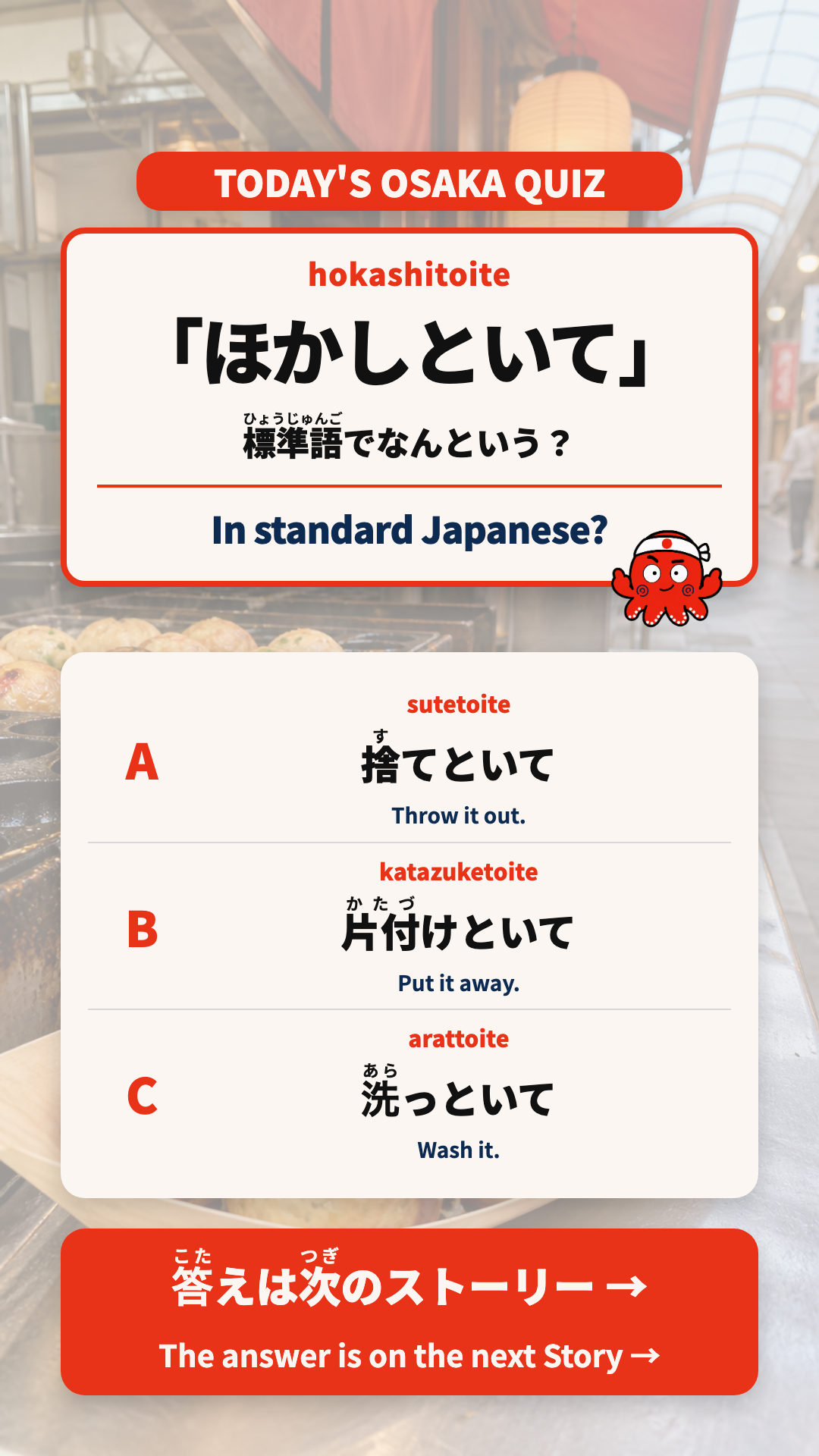
こちらは「ほかしといて」の実際の制作画像です。ストーリーは問題→答えの2枚。文字入り静止画のHTMLテンプレートで作っており、HyperFramesの動画レンダーを使う必要はありません。動画・カルーセル・ストーリーで、共通の素材と学習内容を再利用することがポイントです。 This is the actual “hokashitoite” production image. The Story uses two images: question and answer. They come from a still-image HTML template and do not need a HyperFrames video render. Reuse shared assets and learning content across videos, carousels and Stories.
メリットと向いている仕事 Benefits and suitable tasks
| 場面 Task |
HyperFramesを使う利点 HyperFrames advantage |
| 同じ型の動画を継続する Produce recurring videos in the same format |
言葉・画像・音声の差し替えを仕組みにできる Systematize replacing words, images and audio |
| 全編の文字や色をそろえる Keep typography and colors consistent |
共通の定義を修正し、各場面に反映できる Update shared definitions across scenes |
| 音と表示を正確に合わせる Match sound and visuals precisely |
時間を指定して確認・修正できる Inspect and adjust exact times |
| Codexと制作する Create with Codex |
HTMLや設定をAIが直接編集できる AI can directly edit HTML and configuration |
| 後から直す Revise later |
何を変更したかファイルの履歴で追える Track changes through file history |
一方、初期設定とテンプレートづくりには手間がかかります。短い実写を一度だけ切り貼りする、指で直感的に位置を動かす、といった作業ではGUIの動画編集ソフトの方が手軽な場合もあります。HyperFramesにしただけで自動的に美しくなるわけではなく、台本・読みやすさ・音声確認は必要です。 Initial setup and templates take effort. A GUI editor may be easier for a one-off live-action edit or moving elements by hand. HyperFrames does not automatically make a video beautiful; scripts, readability and audio still need review.
この章の実習 Practice for this chapter
最初は1組の比較だけを題材にしてください。左→右の順、音声と強調の一致、文字の読みやすさを確認し、修正指示を1つ書きます。合格条件は「どの時点の何を直したか」を、変更前後で説明できることです。 Start with one comparison pair. Check left-to-right order, voice/highlight alignment and readability. Write one revision request. You should be able to explain what changed, at what time, before and after.
動画の内容を文字で確認する Read a description of the video
「こんにちは」「おはよう」「ありがとう」「おかえり」「ただいま」を、それぞれ東京→大阪の順で聞き比べます。文字は同じでも音の高低が異なります。声が流れる側が明るくなり、最後に「保存して、もう一度聞き比べよう!」と案内します。発音の違いは動画の音声と高低線を合わせて確認してください。 Compare “konnichiwa,” “ohayou,” “arigatou,” “okaeri” and “tadaima,” each in Tokyo then Osaka pronunciation. The words are the same but pitch differs. The speaking side brightens, followed by a save-and-listen-again prompt. Use both the audio and pitch lines to compare pronunciation.